Core Concepts
Normalized timing
Section titled “Normalized timing”Montage positions are stored from 0% to 100% instead of as absolute seconds. This has two
consequences:
- changing playback speed keeps markers at the same relative point in the animation; and
- replacing a clip with one of a different length does not require every marker to be retimed.
For example, an event at 30% remains at 30% even when the clip duration changes.
Playback lifecycle
Section titled “Playback lifecycle”The player follows this cycle:
Idle → Blending In → Active Playback → Blending Out → IdleDuring active playback, the Player advances the normalized playhead and evaluates authored timeline elements.
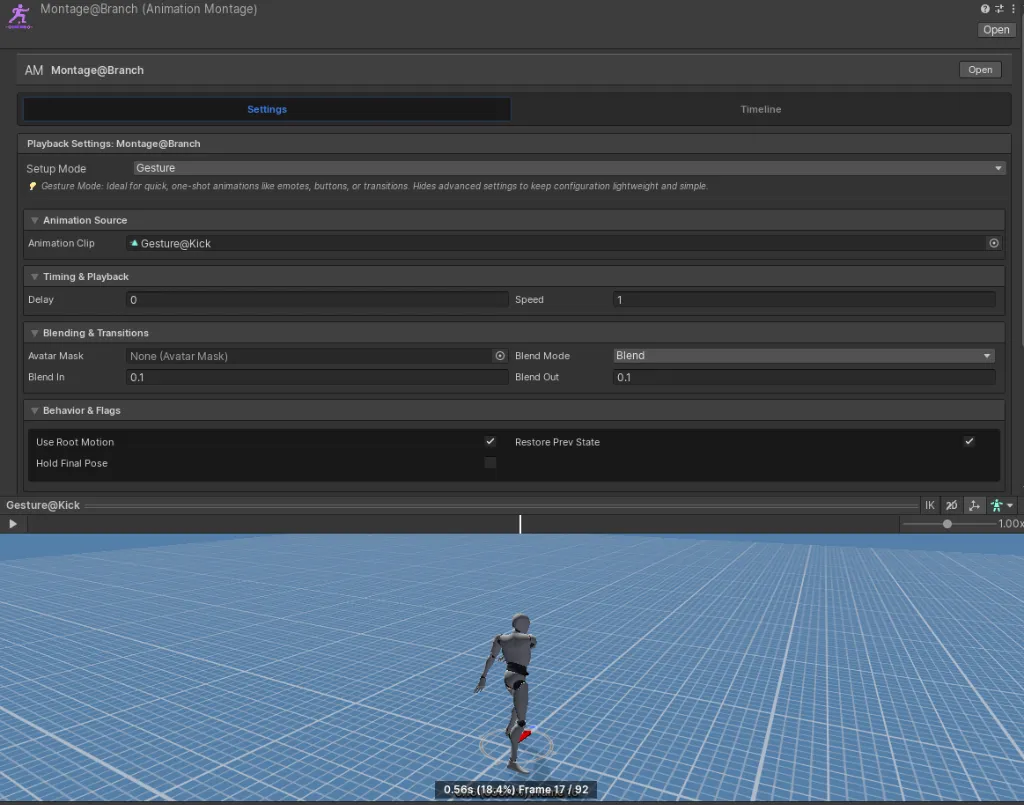
Gesture and State playback
Section titled “Gesture and State playback”| Mode | Intended behavior | Examples |
|---|---|---|
| Gesture | Temporary one-shot layered over locomotion, then blended out. | Drinking, opening a chest, reloading, rolling. |
| State | Sustained animation or stance that remains active until exited. | Limping, crawling, carrying an object, aiming. |
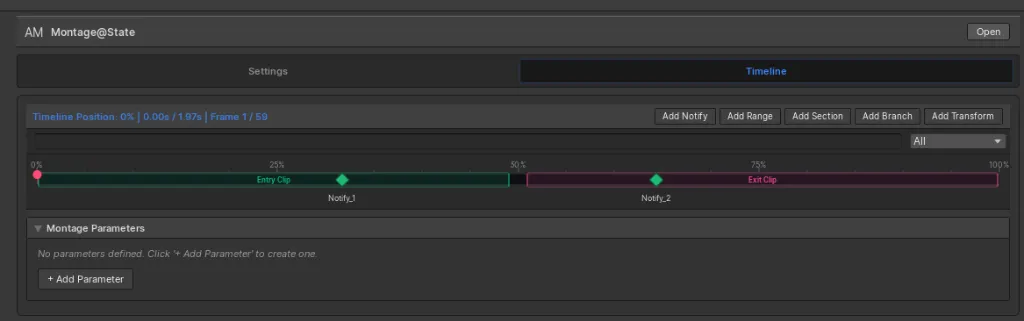
State transitions
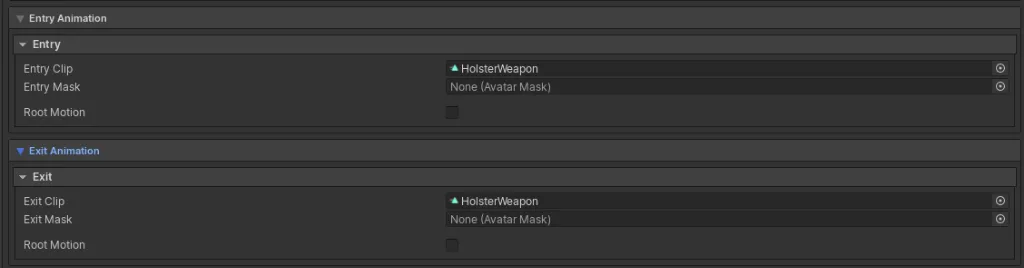
Section titled “State transitions”State mode supports a main state plus dedicated entry and exit clips. The timeline can expose separate entry and exit segments so each phase can carry its own point events.

Root motion
Section titled “Root motion”Translation and rotation from Unity root motion blend with Game Creator locomotion. Test the result with the project’s Character, animation clips, and locomotion setup.
Layers and avatar masks
Section titled “Layers and avatar masks”Montages can target animation layers and use Unity Avatar Masks. This is intended for cases such as an upper-body interaction that continues while lower-body locomotion remains active.
Interruption
Section titled “Interruption”Montage settings include interruptibility, priority, conflict behavior, blend durations, and an option to require a cancel window.

Use Windows to define the part of playback in which an interrupt is allowed.