

Getting Started
This workflow creates one Direct reference, selects it from a supported Game Creator 2 field, and checks the result. Complete Installation first.
1. Open the database
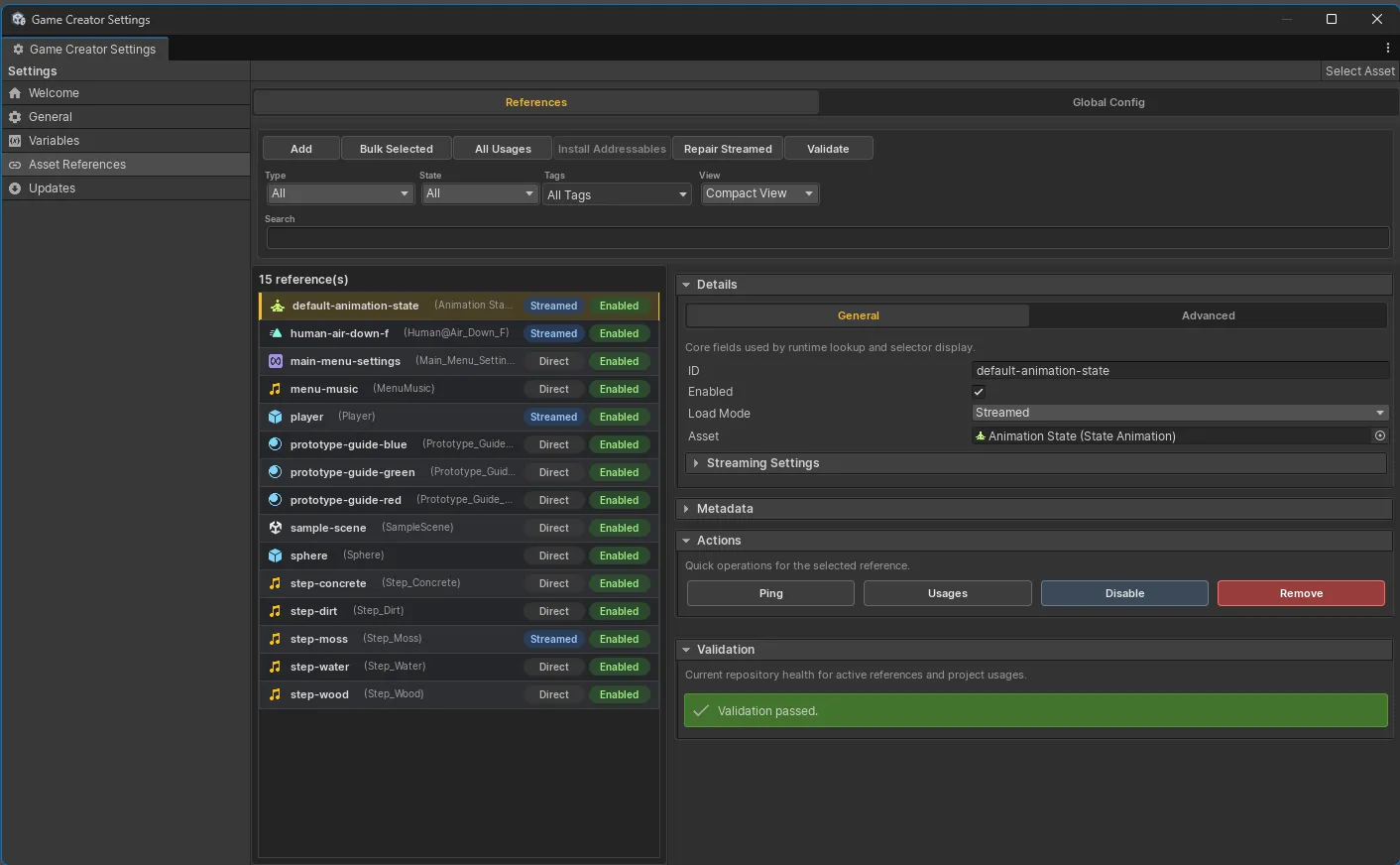
Section titled “1. Open the database”Open either:
Game Creator Settings > Asset ReferencesTools > Skyward Games > Asset References > DatabaseThe settings panel and standalone window use the same repository.
2. Create the first reference
Section titled “2. Create the first reference”- Select a project asset such as an AudioClip, prefab, Sprite, Material, Texture, AnimationClip, or Scene asset.
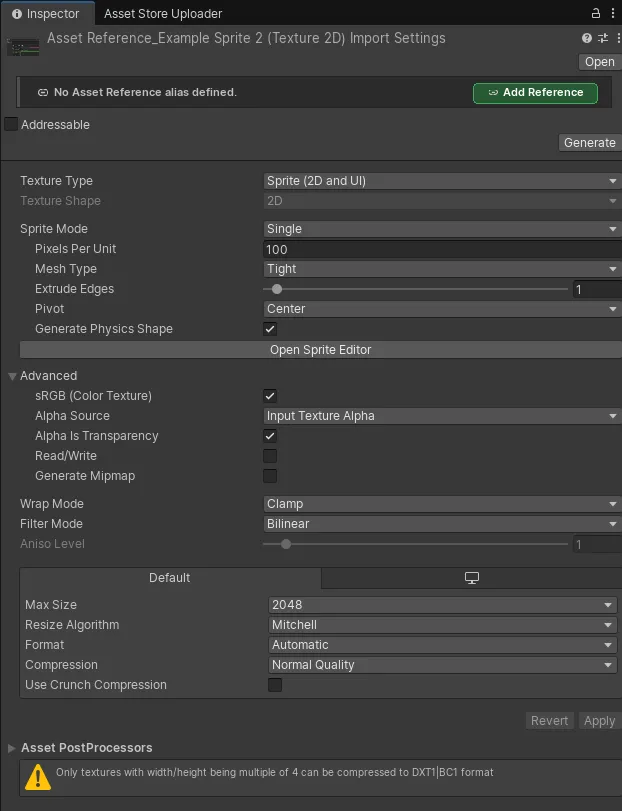
- Click
Add Asset Referenceat the top of the Inspector. - Review the generated Reference ID.
- Add a display name, category, tags, or notes when useful.
- Confirm the creation.
Generated IDs are lowercase and use hyphens between words. For example, HitImpact.wav can become
audio-hit-impact.
3. Select it in Game Creator
Section titled “3. Select it in Game Creator”- Open a Game Creator Instruction containing a supported asset property.
- Open the property’s source selector.
- Choose
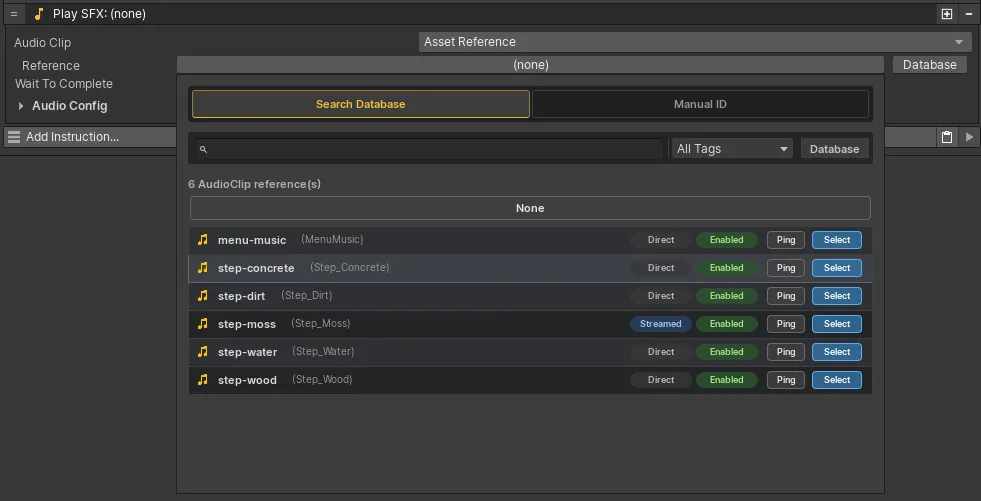
Asset References/Asset Reference. - Select the registered Reference ID.
For example, open Play Sound Effect, choose Asset References/Asset Reference for its Audio Clip
property, and select a registered AudioClip.
4. Validate the repository
Section titled “4. Validate the repository”Click Validate in the database. Validation reports:
- missing assets;
- duplicate enabled IDs;
- empty or invalid IDs;
- scene object references;
- type mismatches; and
- Streamed-reference metadata warnings.
Continue with Database Manager for the full editor surface or Register and Select for bulk registration, Manual ID values, and variable-backed selectors.